JXLCAM Camera Manual
Complete guide to setting up and using your JXLCAM security camera
Start the JXLCAM camera
Press the power button to start the JXLCAM camera. After starting the machine, the blue indicator light flashes continuously and quickly, and the camera enters the state to be connected.
Note: If the blue indicator is slow flashing/always on or cannot be connected, long press the reset button for 5 seconds to reset.
Install JXLCAM APP
Download and install JXLCAM APP, during installation, you need to open all permissions of the APP, otherwise the APP will not work properly.
Connect the JXLCAM camera to the phone
Local mode
When there is no WiFi in the environment, AP mode can be used for connection. The effective distance of this mode is no more than 10M, which can realize localized video viewing.
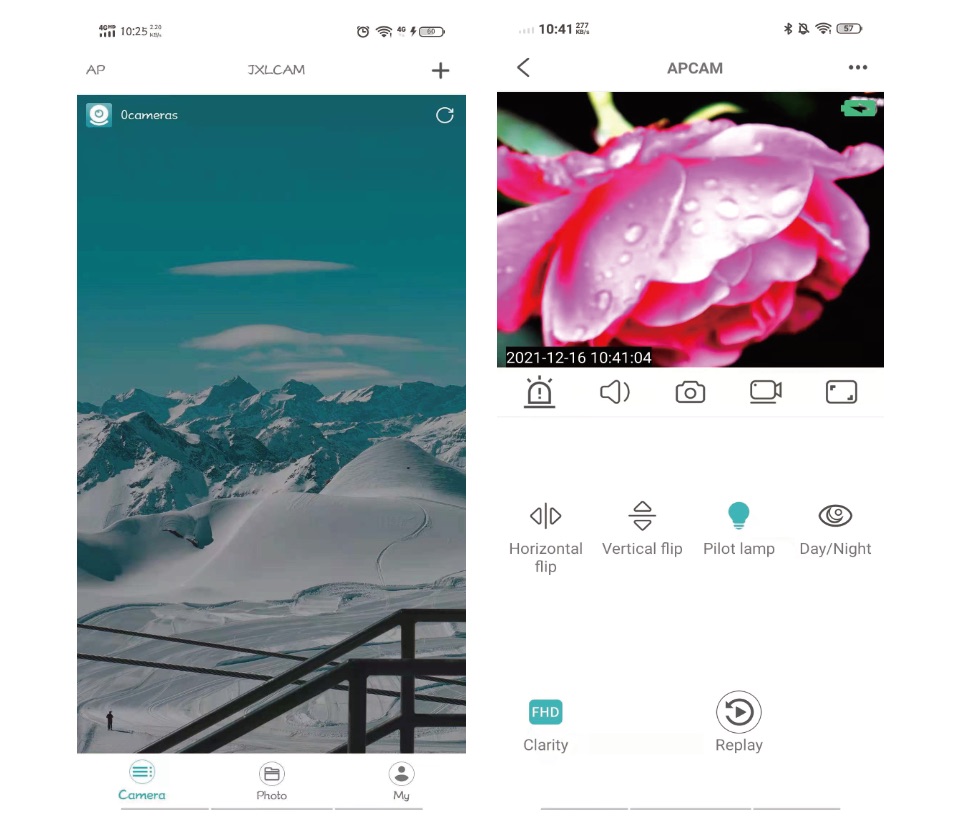
Open your phone's WiFi list and connect to B/xCCQ……. After success, open the APP page and click AP as shown below to watch the video.
Remote mode
- First, confirm that there is available WIFI signal near the device, turn the device on, the blue indicator light flashes quickly, and the device enters the state to be connected. (Note: only support 2.4G band WIFI signal)
- Unable to connect successfully when power is low.
- When connecting to the network, place the device as close to the router as possible. If the nearby available WiFi signal is weak, the connection cannot be successful or the screen will be closed after successful connection.
- Open the APP JXLCAM and follow the steps below
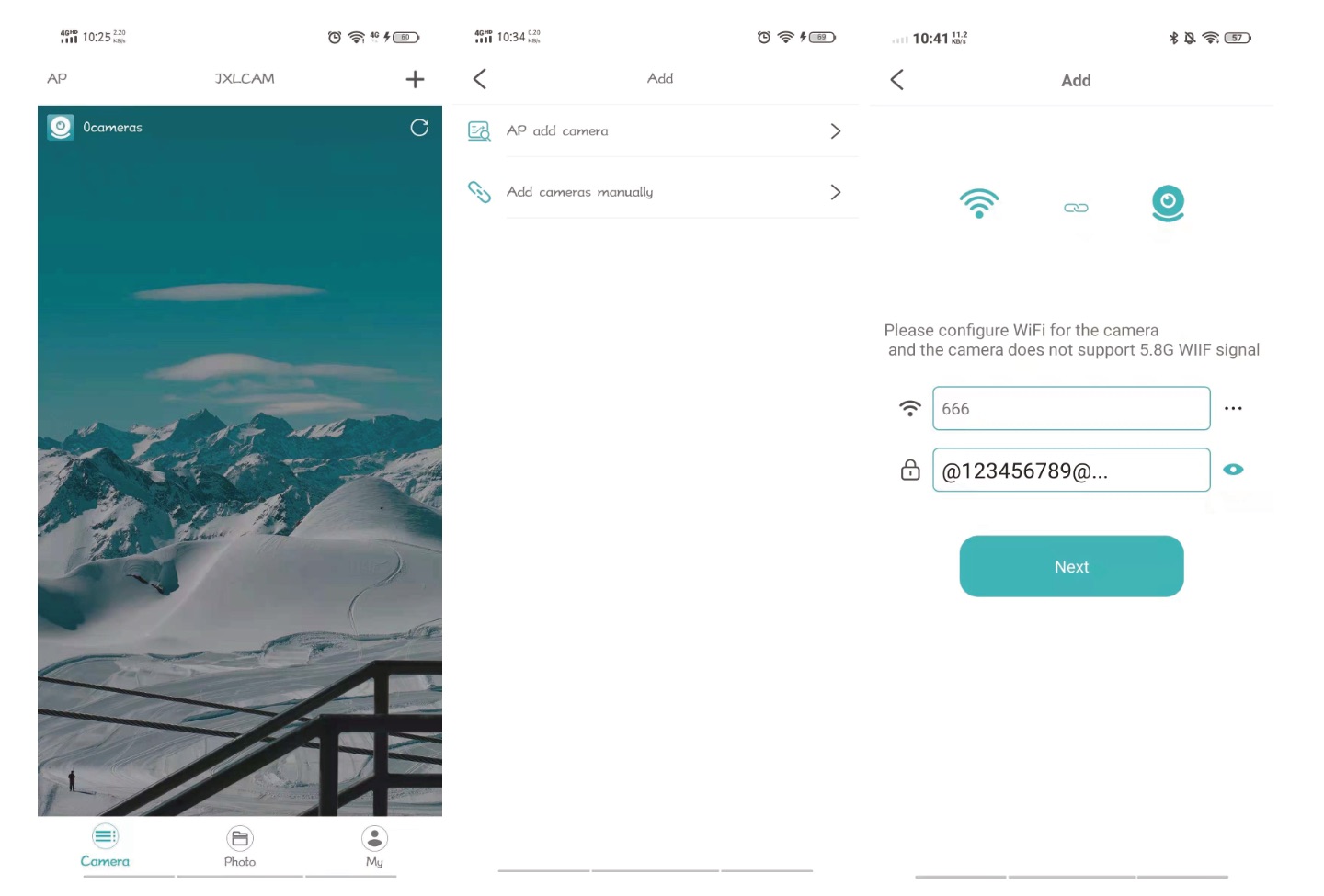
- Click '+'
- Click "AP add Camera"
- Click "…" to connect to the local 2.4G WIFI band, enter the password. and then go to the next step.
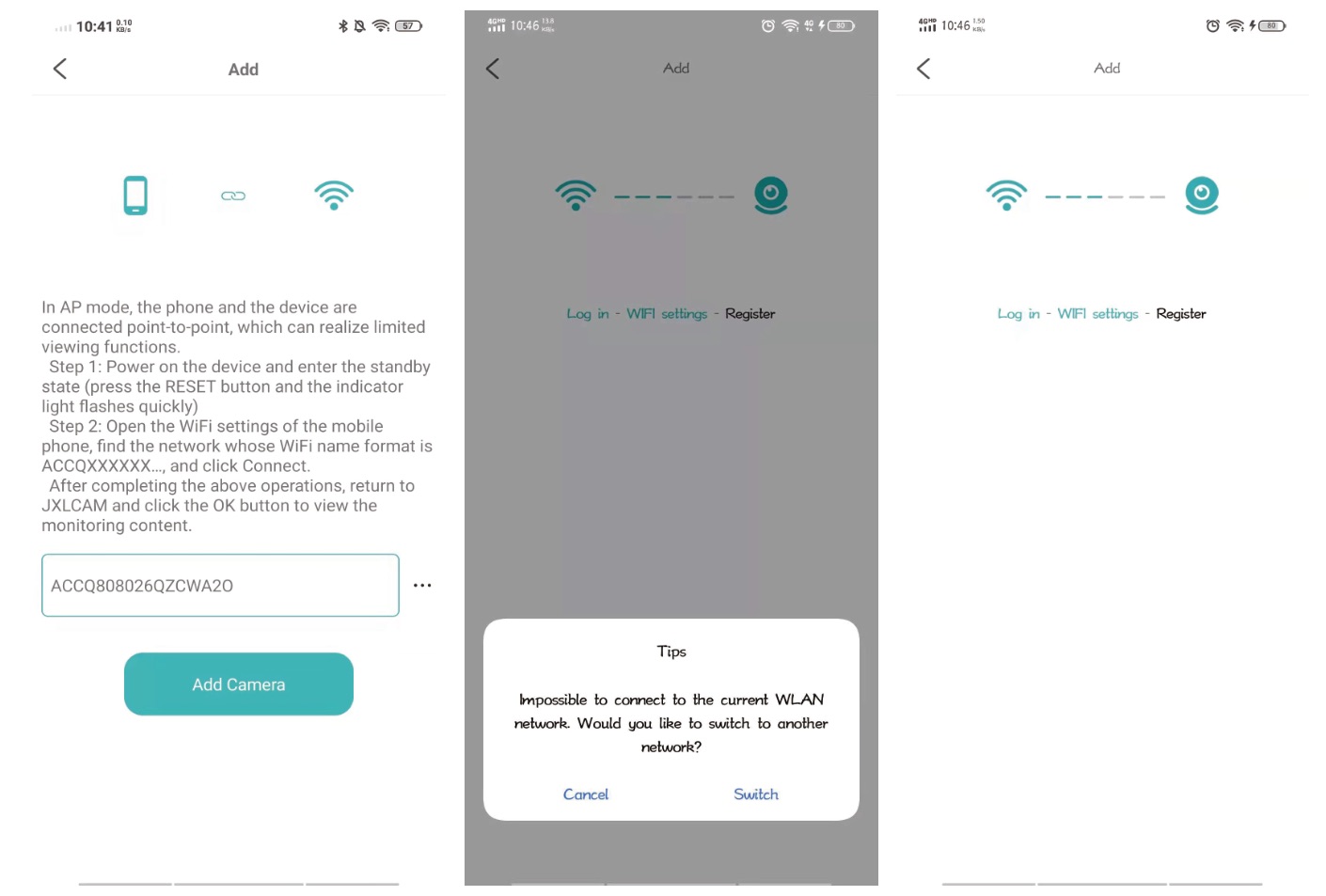
- Click"… "to connect to the camera WIFI hotspot and add the camera
- Click"Cancel"
- Waiting for the connection.
- Click"Next"
- You can change the name or not, and then click "Next"
- Check out the video preview on the home page
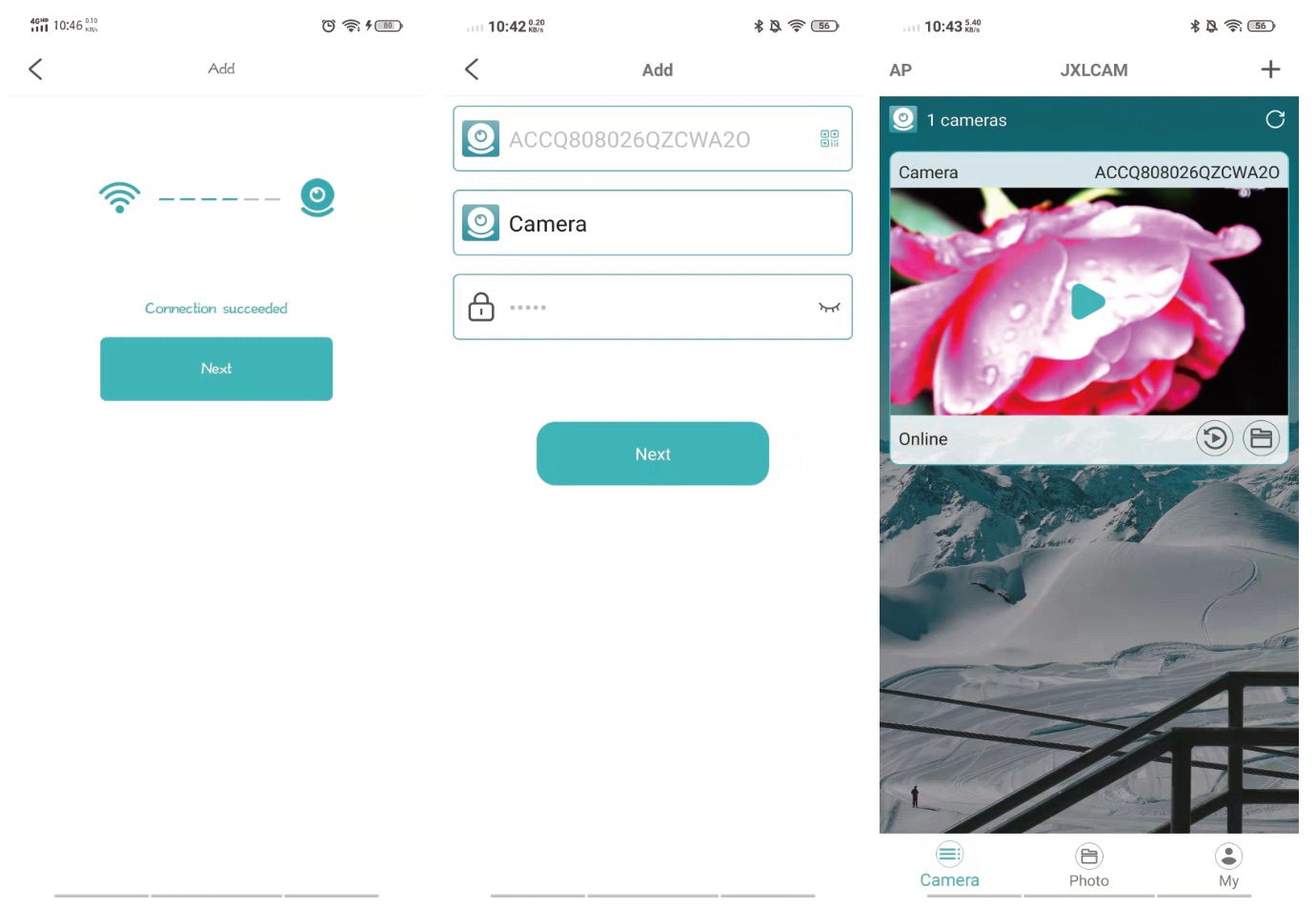
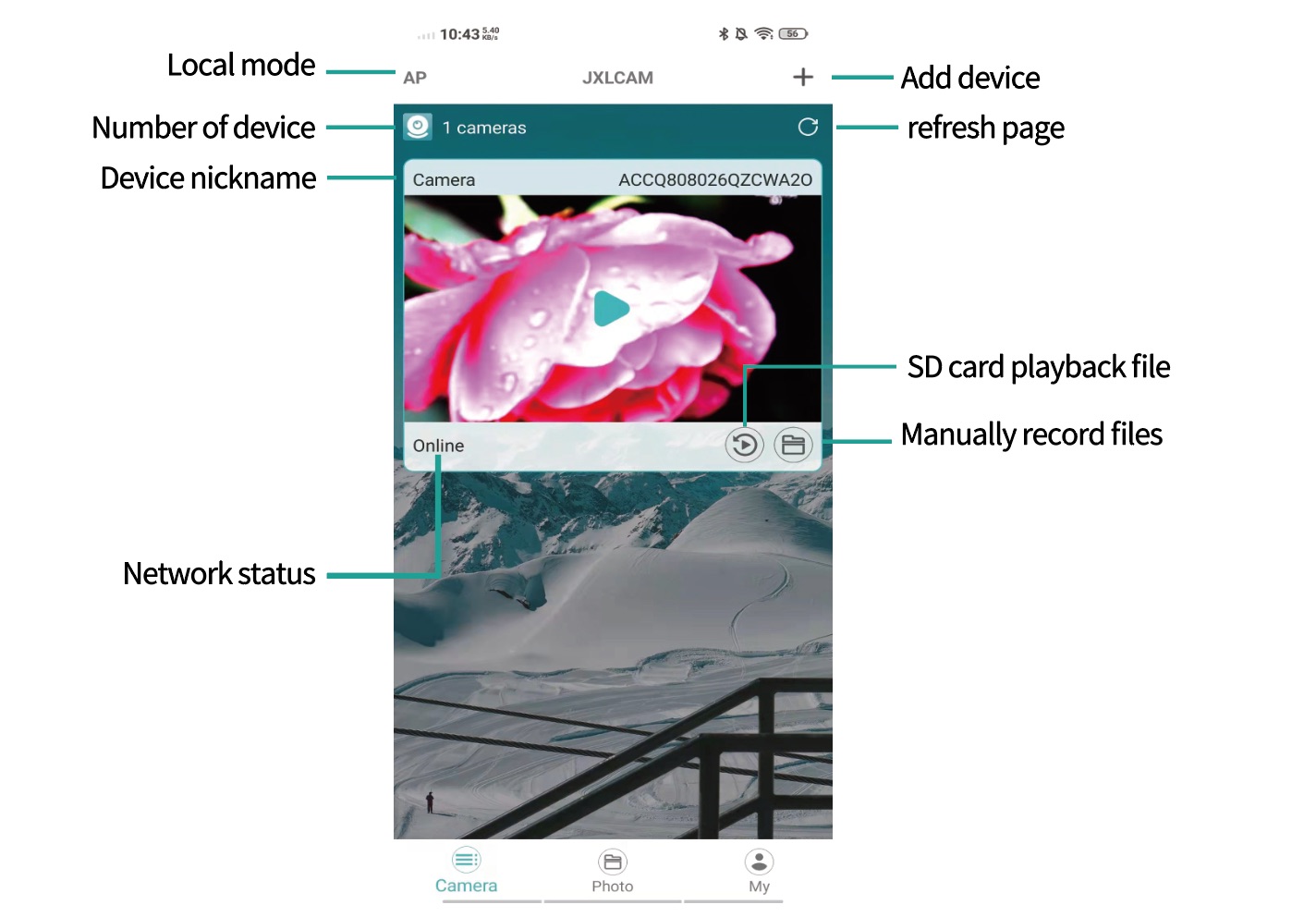
JXLCAM APP interface description